







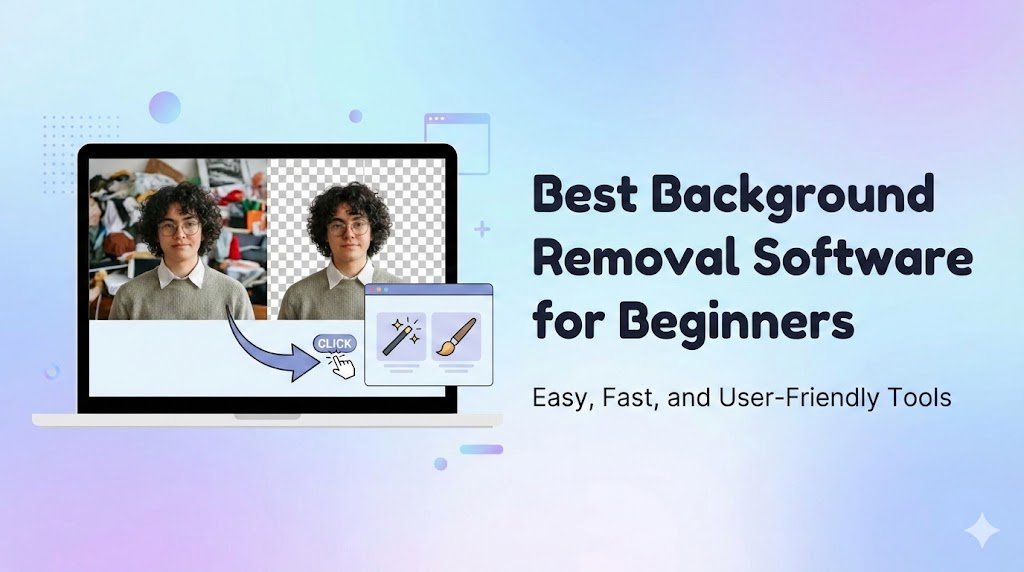
Canva is one of the most popular design platforms in the world, and its background removal tool is widely used by marketers, designers, and content creators. Canva allows users to remove backgrounds quickly, replace them with solid colors, patterns, or custom visuals, and create professional designs for web, social media, and marketing campaigns.
This article explains how to remove background using Canva, tips for best results, and practical use cases.
Why Use Canva for Background Removal
- User-Friendly: One-click AI removal, no design skills needed.
- Quick and Efficient: Removes backgrounds in seconds.
- Versatile: Supports social media posts, marketing banners, e-commerce images, and presentations.
- Integration: Background-free images can be combined with Canva templates, text, graphics, and animations.
Step-by-Step Guide to Remove Background Using Canva
- Log in to Canva
- Use your desktop or mobile app.
- Use your desktop or mobile app.
- Upload the Image
- Drag and drop the image into Canva’s editor.
- Drag and drop the image into Canva’s editor.
- Select the Image
- Click on the image to highlight it.
- Click on the image to highlight it.
- Click on ‘Edit Image’
- Navigate to the ‘Background Remover’ option.
- Navigate to the ‘Background Remover’ option.
- Apply Background Removal
- Canva’s AI detects the subject and removes the background automatically.
- Canva’s AI detects the subject and removes the background automatically.
- Refine the Image (Optional)
- Use eraser or restore tools to correct edges.
- Adjust brightness, contrast, and shadows for realism.
- Use eraser or restore tools to correct edges.
- Add a New Background
- Use a solid color, gradient, or image template to replace the background.
- Use a solid color, gradient, or image template to replace the background.
- Export the Image
- Save as PNG for transparency or JPEG for standard use.
- Save as PNG for transparency or JPEG for standard use.
Tips for Best Results Using Canva
- Use high-quality images – clearer edges are easier for AI to detect.
- Avoid busy backgrounds – AI performs best with plain backgrounds.
- Refine edges manually – perfect for hair, fur, or detailed objects.
- Maintain transparency – use PNG format for overlaying images on other designs.
- Test on different backgrounds – ensure compatibility with web and print designs.
Use Cases for Canva Background Removal
- Social Media Marketing: Instagram posts, TikTok videos, Facebook ads.
- E-commerce: Product images with white or custom backgrounds.
- Website Design: Hero images, banners, and illustrations.
- Presentations: Slides, infographics, and promotional visuals.
Advantages of Using Canva for Background Removal
- No installation required (works in browser or app)
- Beginner-friendly and fast
- Integrates seamlessly with other design elements
- Supports mobile editing for on-the-go content creation
Conclusion
Canva makes background removal easy and accessible for everyone, from beginners to professional content creators. Its AI-powered tools, intuitive interface, and integration with design templates allow users to create polished, professional visuals in minutes. By following best practices, marketers, designers, and business owners can leverage Canva to enhance branding, marketing campaigns, and social media presence.